
Logging into or creating a TourRadar account allows you to manage bookings, make payments, and access all features securely.
Below is a step-by-step guide on how to log in, sign up, and access your booking or inquiry details using a One-Time Verification Code.
How do I log in or create an account?
-
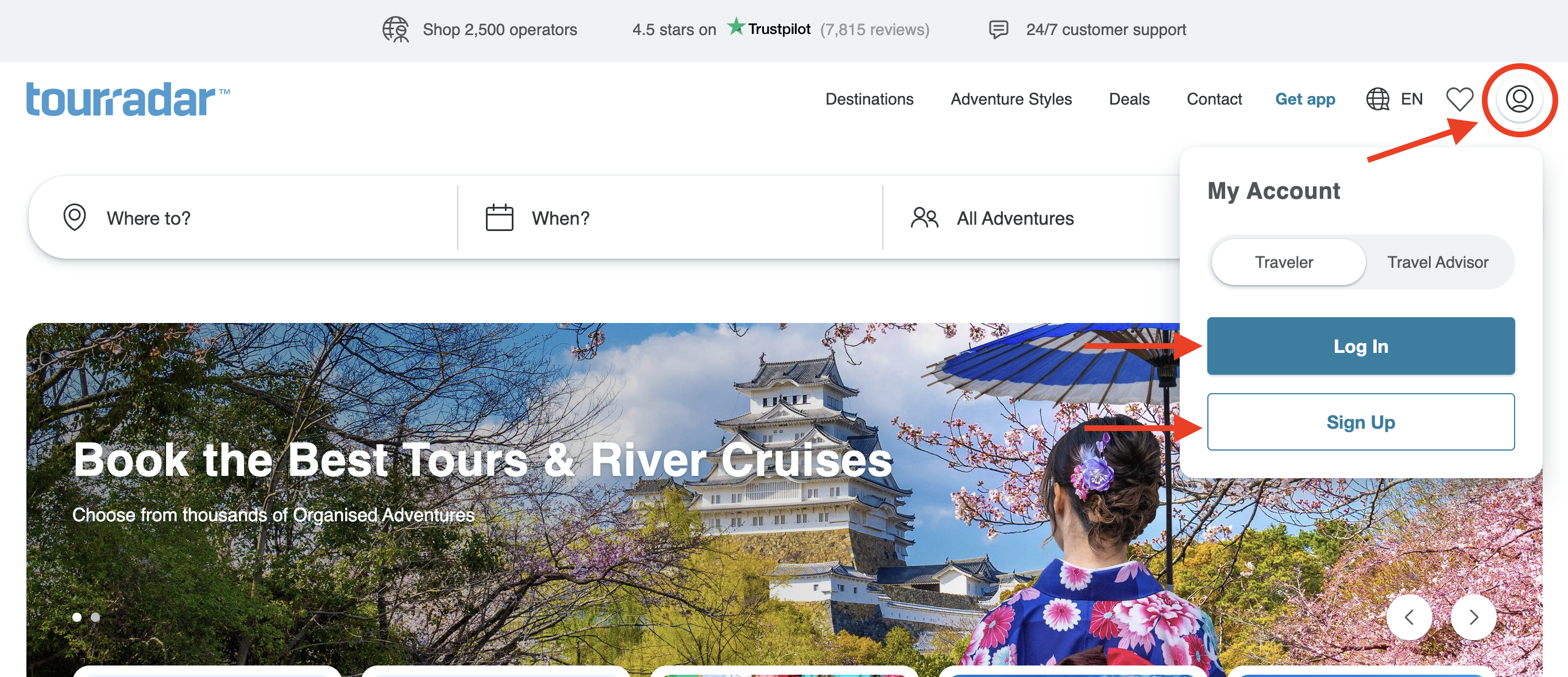
Select Log In or Sign Up on any TourRadar page.
-
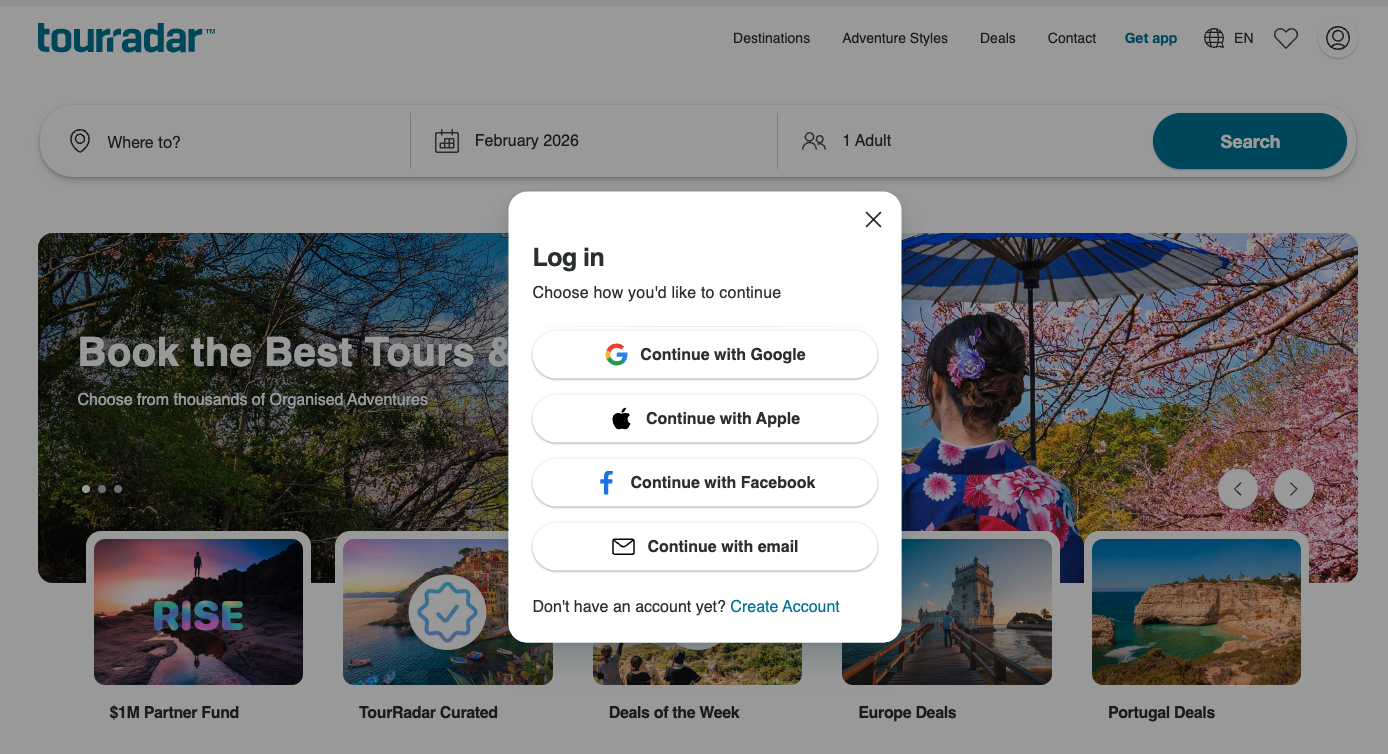
To log in, enter your email and password, or log in using Google, Facebook, or Apple. If you signed up using Google, Facebook, or Apple, you must log in the same way.
-
If you're not sure how you signed up, the option you used last time is marked Last used on the login page.
-
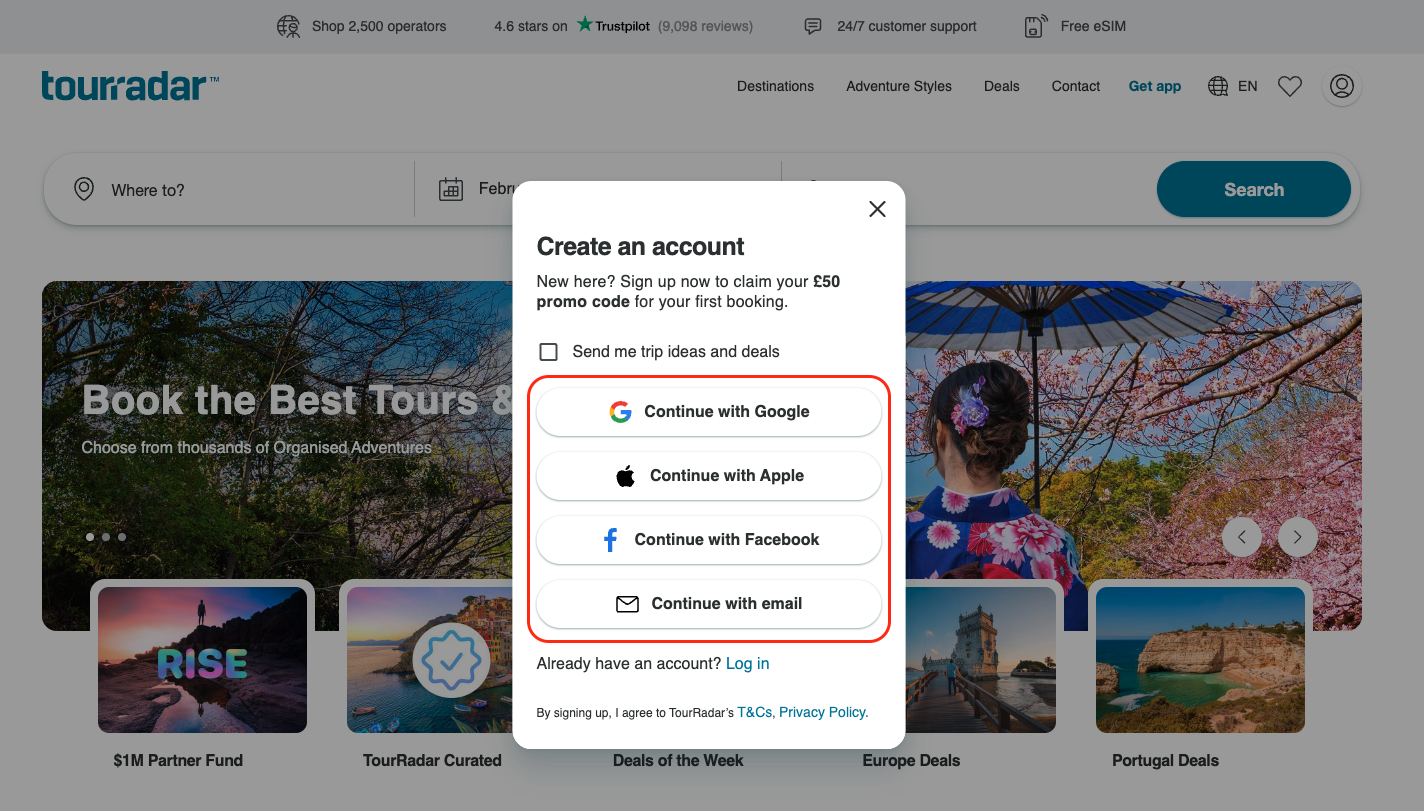
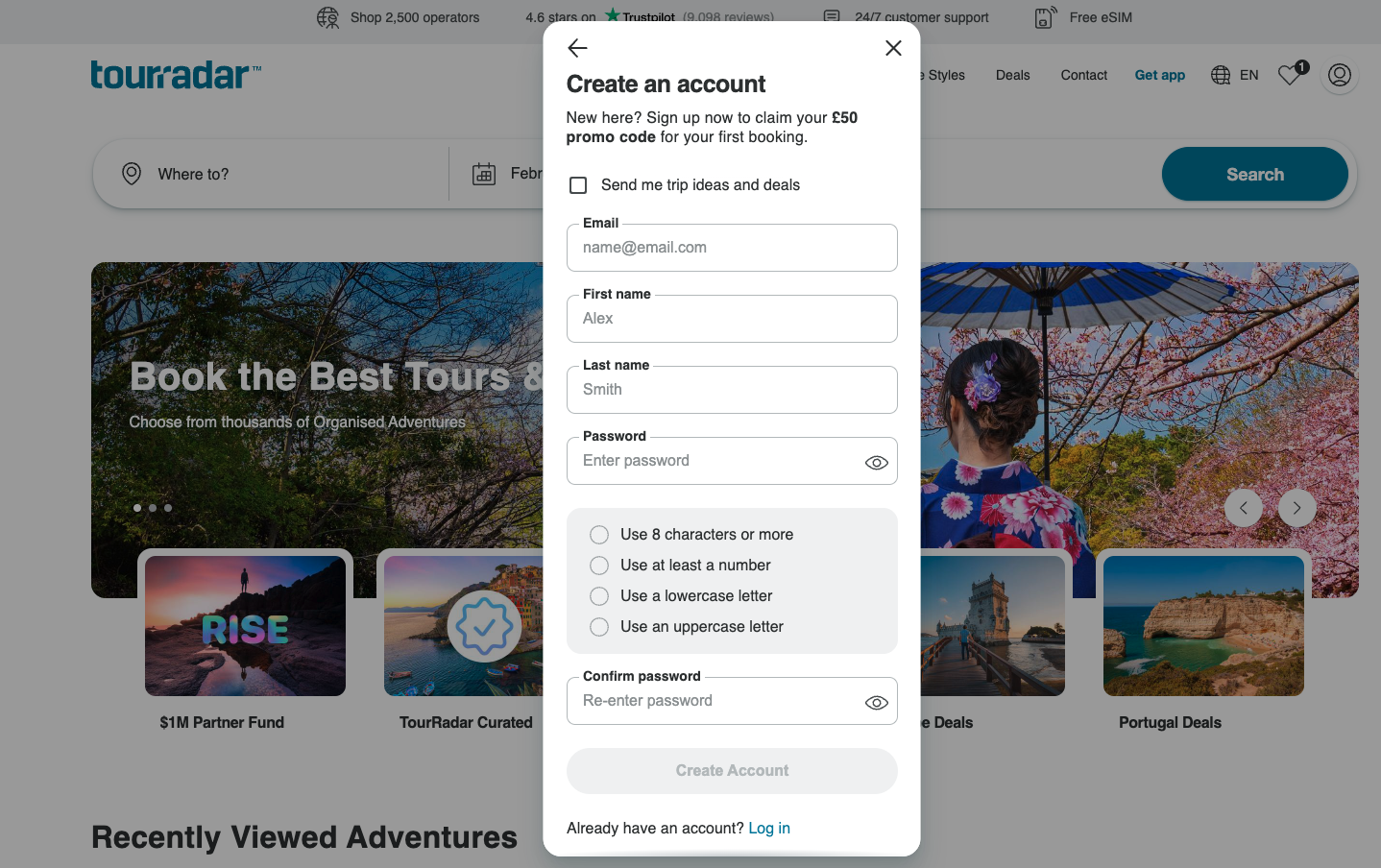
If you select Google, Facebook, or Apple, you'll be taken to that account to log in. If you select Continue with email, you'll be asked to enter your details and create a password.
-
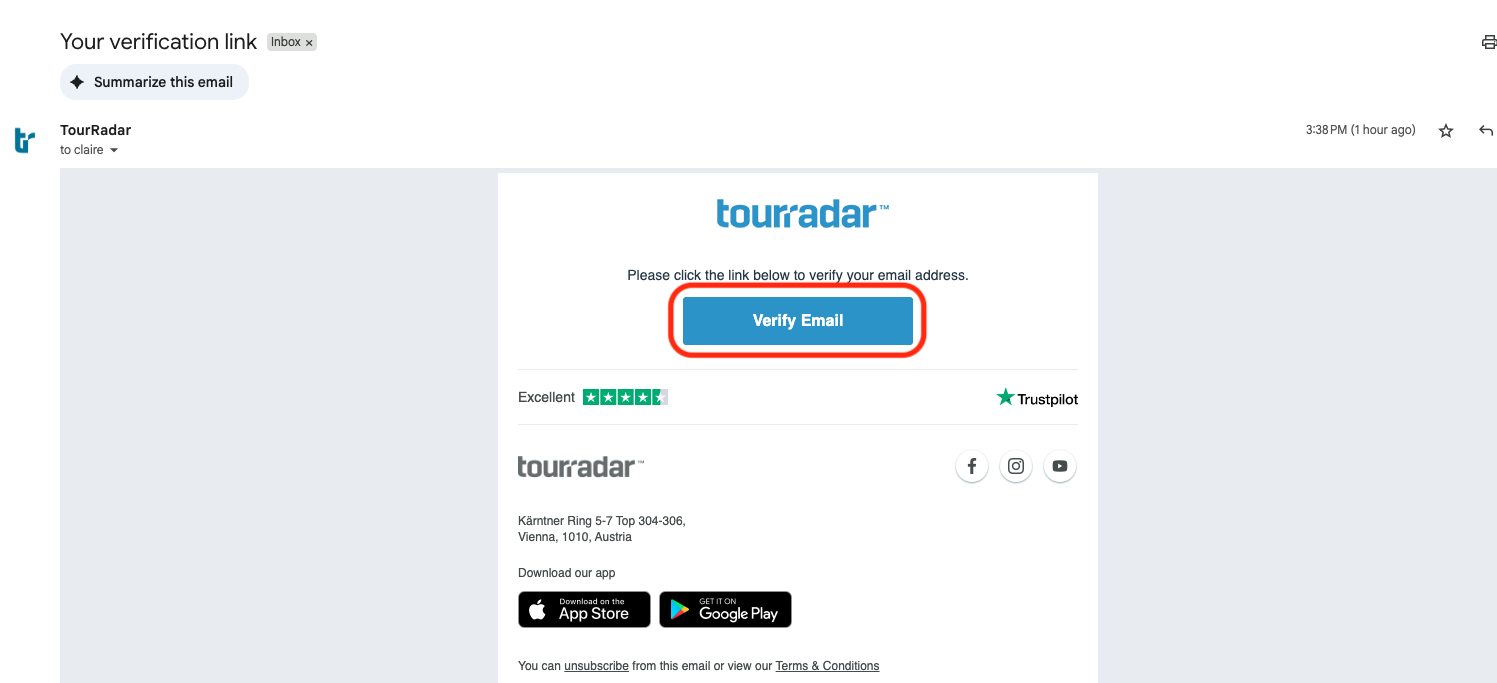
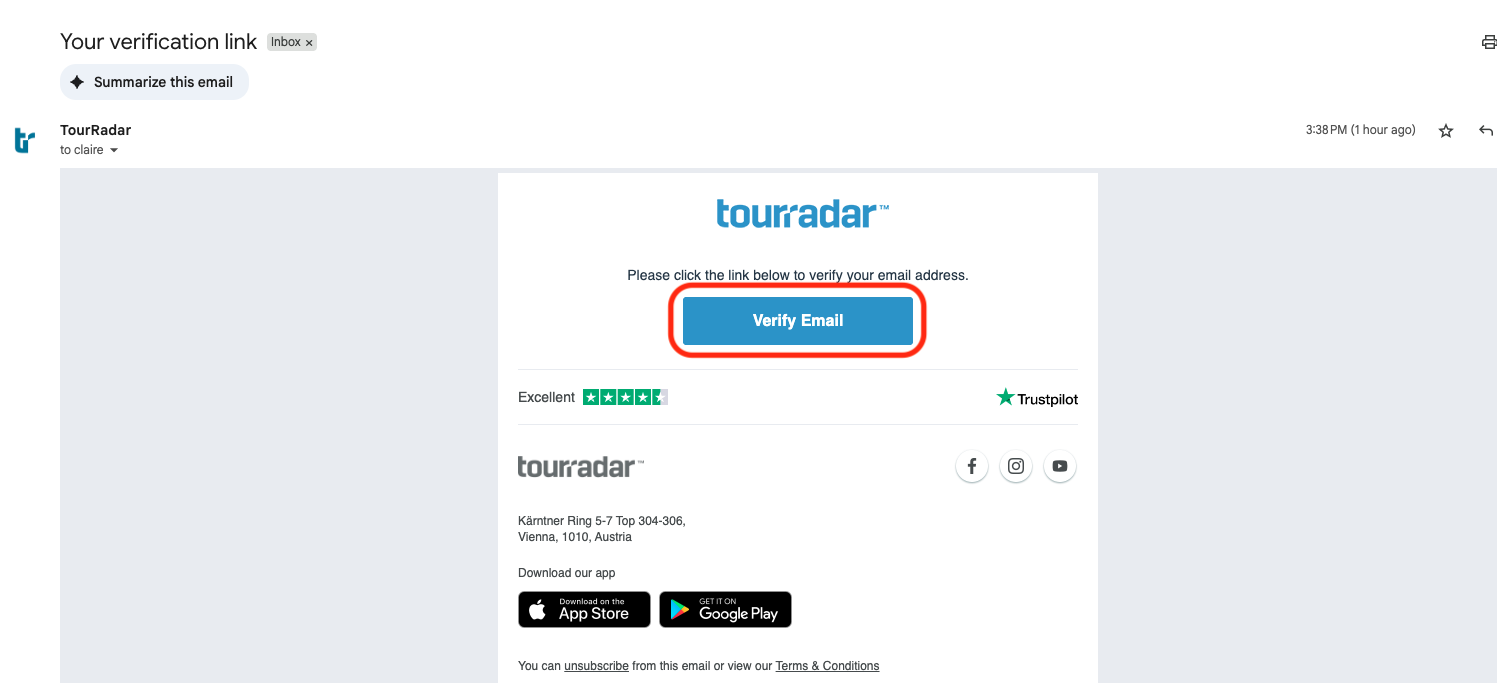
You'll then be emailed a verification link. Select it to verify your email, and then log in.
-
You can also go straight to the login page. If you don't have an account yet, select Create account there.
If you've made a booking with TourRadar, you already have an account.
It's automatically created using the email address you provided. After your first booking, you'll receive a verification email to complete your account setup. Check your inbox (including spam) for that email, and use it to log in.
If you can't find it, reset your password using the Forgot your password? option.
How do I use a One-Time Verification Code to view my booking?
If you've received an email from TourRadar about your inquiry or booking, selecting View or Reply will open your Booking Conversation Page in a new window.
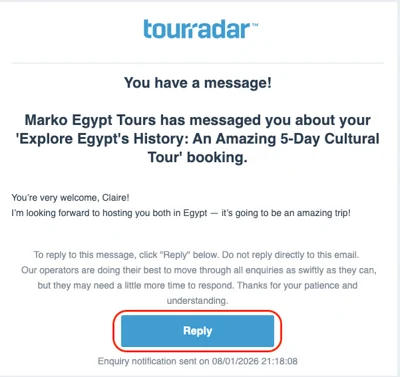
If you're not already logged in on that device, you'll see two options:
-
Log in for full access to your TourRadar account
-
Use a One-Time Verification Code for temporary access
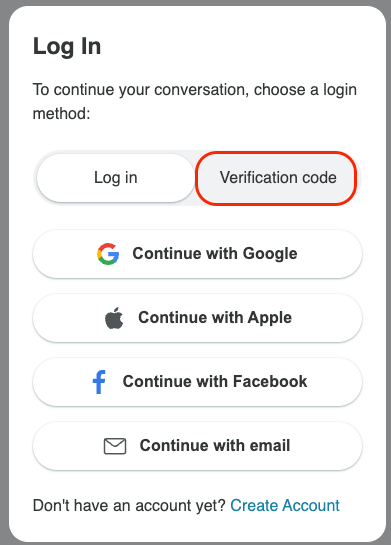
Full account login
Log in to get full access to your account, including all your bookings, making payments and managing your booking.
-
Use your email and password, or if you signed up with Google, Facebook, or Apple, select the same option to log in.
Using a One-Time Verification Code
If you prefer not to log in fully, or need quick access, you can request a One-Time Verification Code.
-
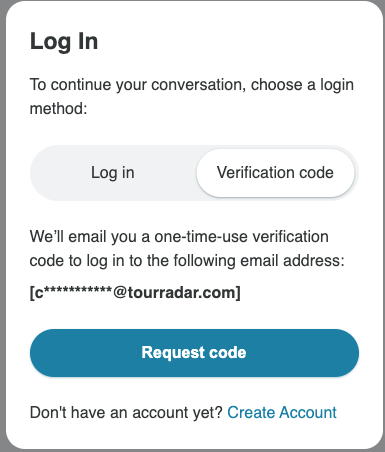
Select Verification Code, then select Request Code. A code will be sent to the email address linked to your booking.
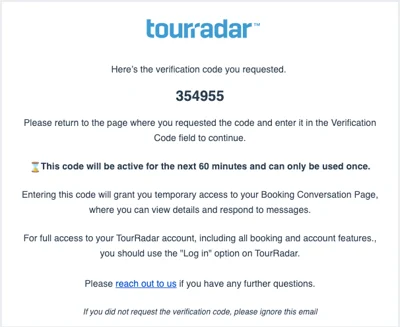
Check your inbox for a 6-digit code (valid for 1 hour). Allow a few minutes for delivery and check your spam folder if needed.
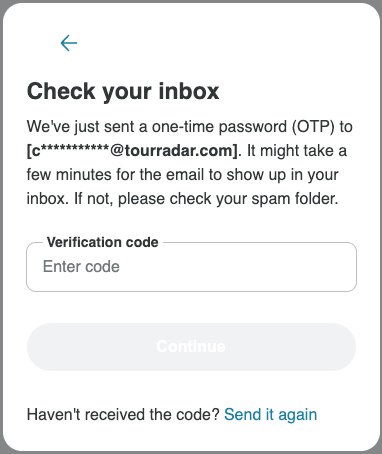
Enter the verification code to access your Booking Conversation Page.
With a verification code, you can:
-
View your itinerary and messages.
-
Send messages.
You cannot:
-
Make payments
-
Access other bookings or inquiries
-
Access account settings
-
View your profile or payment details
Good to know:
-
The verification code is valid for 1 hour.
-
Temporary access to your Booking Conversation Page lasts up to 4 hours.
-
If you request multiple codes, only the most recent code will work.
Troubleshooting
-
Make sure you're using the correct email address linked to your booking or inquiry.
-
If you signed up using Google, Facebook, or Apple, you must log in the same way.
-
If you've forgotten your password, see How do I reset my password?
-
If you don't receive a verification code, check your spam folder or request a new code.
For more help, visit Troubleshooting login issues on TourRadar.
Still need help? Our Customer Support team is here 24/7. Contact us.
Related questions