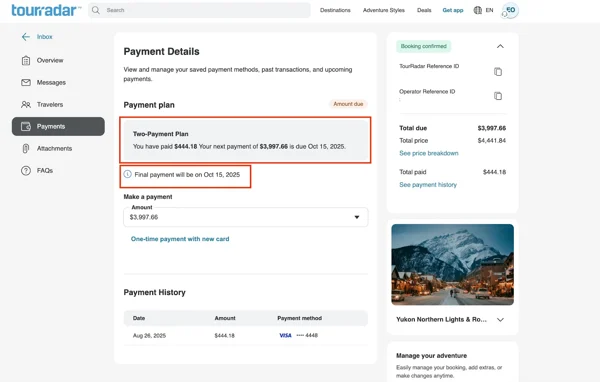
The final payment is charged automatically on your client's final payment date, using the payment method you selected at the time of booking. The final payment date depends on the operator's terms. For more details on accepted payment types, please refer to this article: What are my options to pay at check-out? Can my client use their credit card?
Automatic Charging
On the final payment date, the final balance will be automatically charged to the credit or debit card used at the time of booking.
Important: To prevent the payment from failing, please advise your client to contact their bank and whitelist "TourRadar GmbH" for the transaction. If the automatic payment is declined due to a card restriction and the issue is not corrected in time, the booking will be at risk of cancellation.
How to Add a New Payment Method
You can use a new card for any payment by following these steps:
-
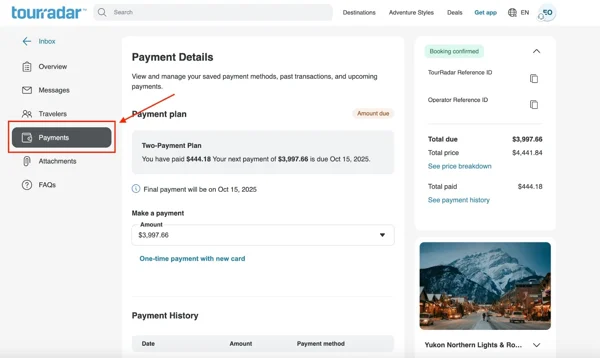
Go to your client’s booking and click on the ‘Payments’ section.
-
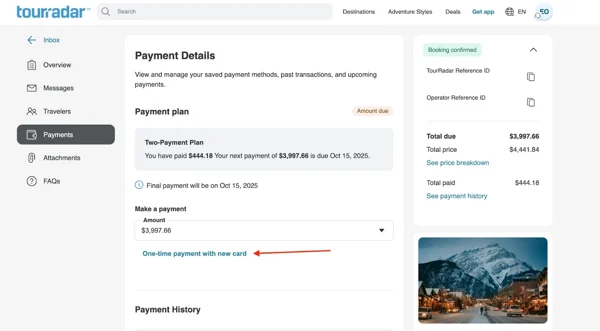
Select ‘One-time payment with new card’.
-
Enter the new card details, accept the terms and conditions, and click ‘Pay Now’ to complete the payment.
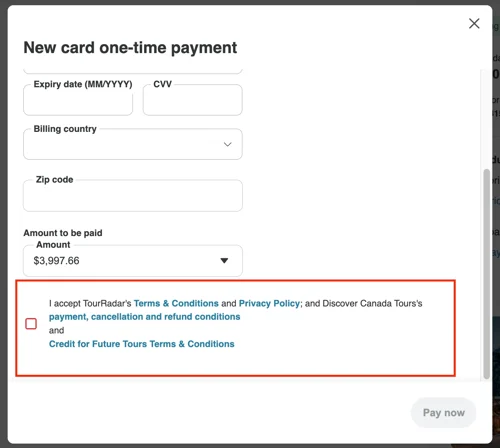
Make sure that you accept the terms and conditions in order to complete the payment
Email Reminders:
You will receive an email reminder two weeks before the final payment is due, giving you ample time to ensure your payment method is ready and has sufficient funds available.
Manual Payment Options
If you prefer to make additional payments before the final due date, you can do so at any time.
-
Navigate to your client’s booking and go to the ‘Payments’ section.
-
Select the amount you wish to pay.
-
Choose your payment method:
-
Using a stored company card: If you have a company credit card on file, you can select it to complete the payment. Please note that a client's card cannot be used for this purpose.
-
Using your client’s card: If you need to add a new card, please follow the instructions provided in the section above.
-
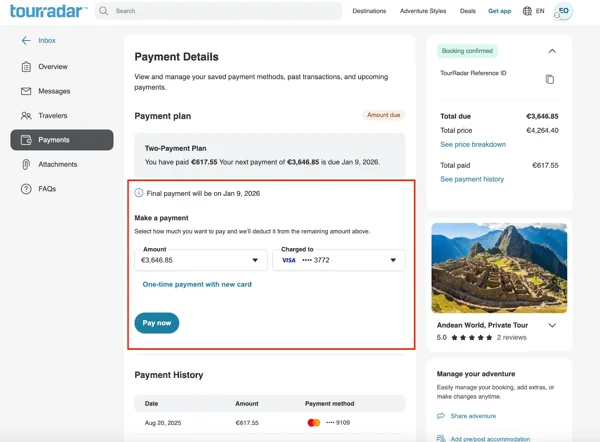
Please note that each payment made will be displayed in the ‘Payments’ section of your client’s Booking Conversation Page.
Splitting payments with co-travellers:
If your client is traveling with others, you can initiate a secure payment link for each traveler through the 'Traveller Details' section of the Booking Conversation Page. This allows you to split the payment between your client and the other travellers on their trip.
For more details on how to split payment with the co-travellers, please refer to this article:
Can I split the payment between my client and the other travellers on their trip?
Track your client’s payment history
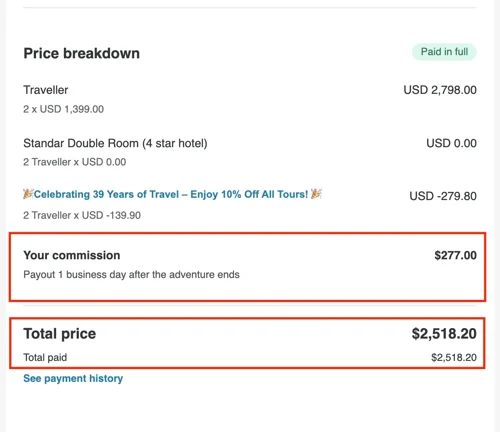
At the bottom of the ‘Overview’ section in your client’s Booking Conversation Page, you will be able to see:
-
Your client’s payment history
-
Your commission amount
-
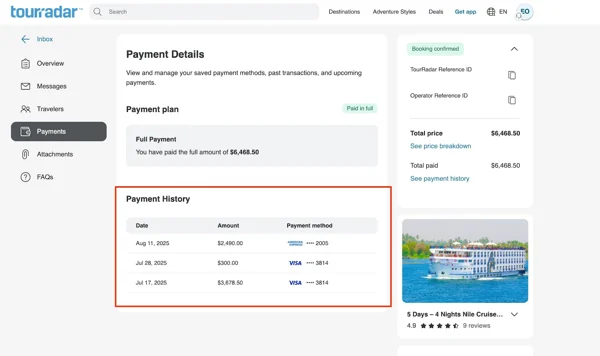
To review the payment history, click on the ‘Payments’ section. You will find a complete list of all transactions at the bottom of the page.
-
Any upcoming payment will be shown by clicking on the 'Payments’ section.