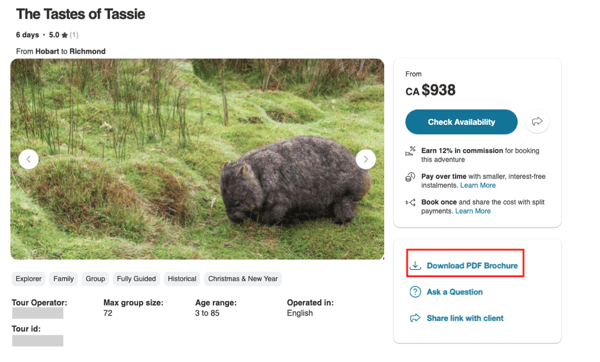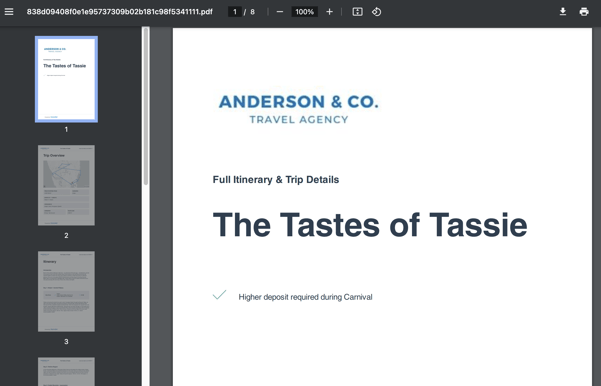
If you come across a tour that you believe your client may be interested in, you can share a unique link with them or download a PDF brochure to send.
This link or brochure will display your logo if you have uploaded one through the Partner Portal, or if an admin has added a logo for your company. The page will be optimized for client viewing and will not show agent-specific features such as commission rates.
Sharing a link with your client
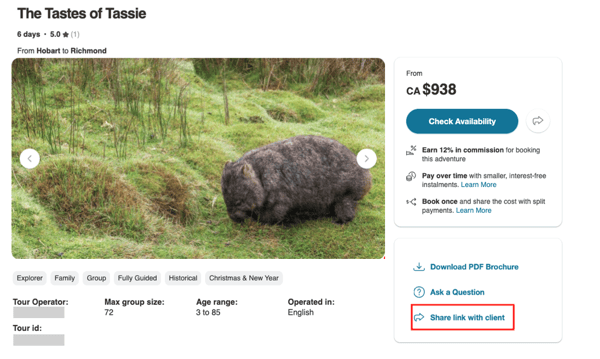
- To share a link with your client, click the “Share link with client” button on the tour page.
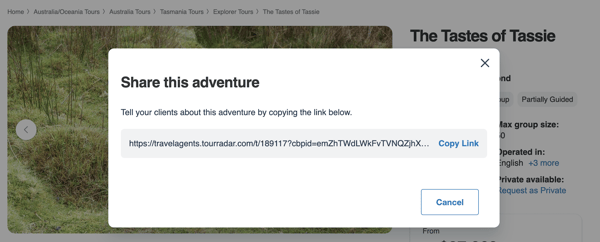
- Copy the unique link and paste it into an email, message, or any communication channel you use with your client. When your client opens the link, they will be taken to the same Tour Detail Page, but in a client-friendly view.
What your client can do on the shared tour page
When your client opens the shared tour page, they will be able to:
- Check Availability for upcoming departures
- Book Now if they are ready to complete their booking
- Contact Travel Agent to ask questions or request assistance
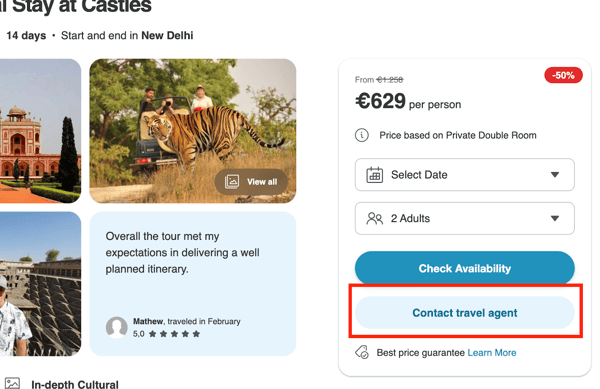
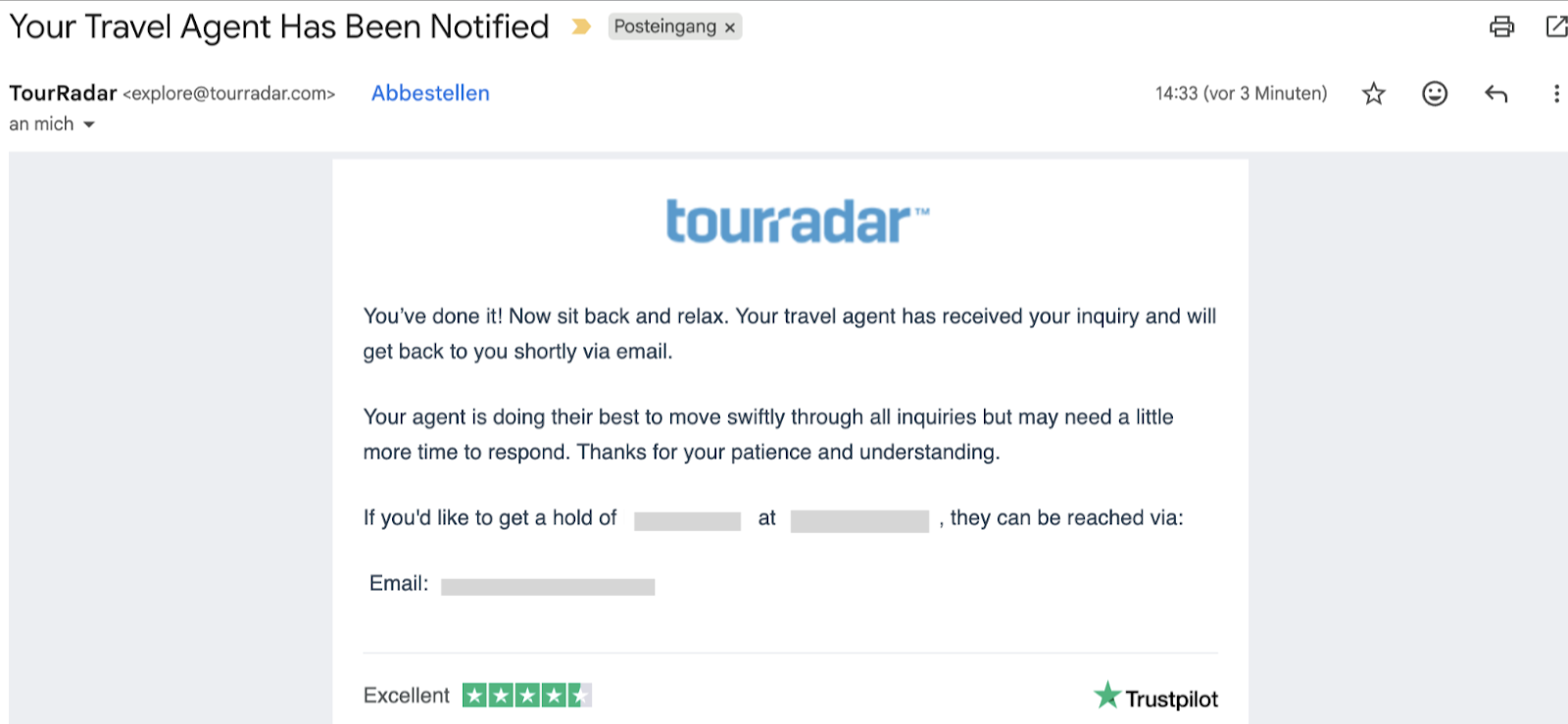
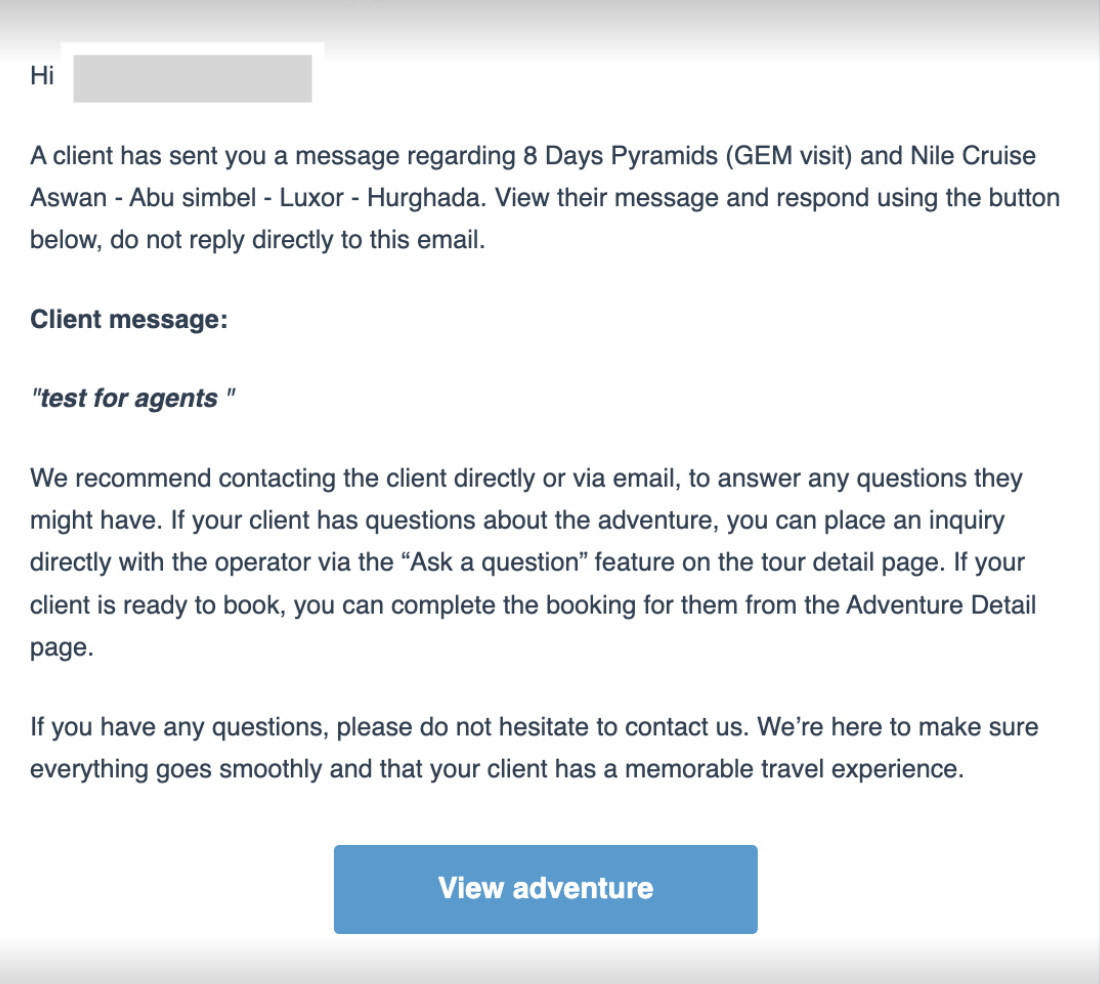
This action will trigger two email notifications:
- One email to you as the travel agent notifying you of the inquiry
- One email to the client confirming their request
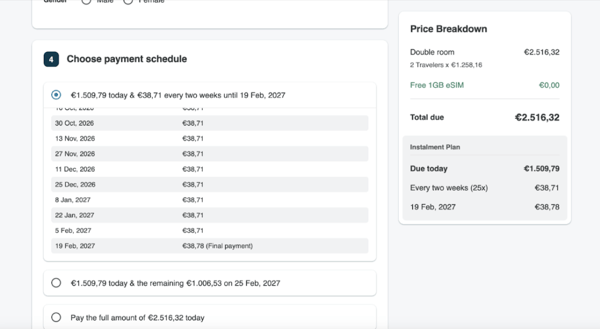
If a client books directly from your shared page, they will be able to complete the checkout by entering their credit card details and selecting from the available payment plan options.
Downloading a PDF brochure
If you prefer to send a brochure, you can click the “Download PDF Brochure” button.
Enter either your own email address or your client's email address, and the brochure will be sent to the selected inbox for download.